
Enhanced Security
Enhanced Security encrypts everything Sealshot stores on your Mac and locks viewing behind Touch ID. Capturing always works — even while locked — so you never miss a shot; only viewing your library requires you to unlock.
What it protects
Section titled “What it protects”When Enhanced Security is on:
- Stored captures and recordings are encrypted on disk (AES-256-GCM) — with one exception you choose yourself, below.
- The search index, undo history, and extracted OCR text are encrypted too.
- Viewing requires Touch ID, your Apple Watch, or your Mac’s password.
- A recovery code is created at setup, in case your Mac’s keys are ever lost.
- The Privacy & Security settings themselves require authentication to open, so no one can quietly change them.
- Captures that skip the Library are encrypted exactly like the rest — waiting in Scratch is not a way out of encryption.
- Outside Sealshot, a protected capture shows no Finder preview. That is deliberate: the preview extension holds no keys and never asks for them.
Turning it on
Section titled “Turning it on”Open Settings → Privacy & Security and turn on Enhanced security. Sealshot encrypts your existing captures (a progress bar shows the work) and then walks you through the recovery-key ceremony.
The plain, unencrypted search index — which holds text read out of your captures, along with titles and tags — is deleted as the switch is thrown, rather than being left until the first encrypted save. A locked Sealshot also refuses to read such a file even if it finds one.
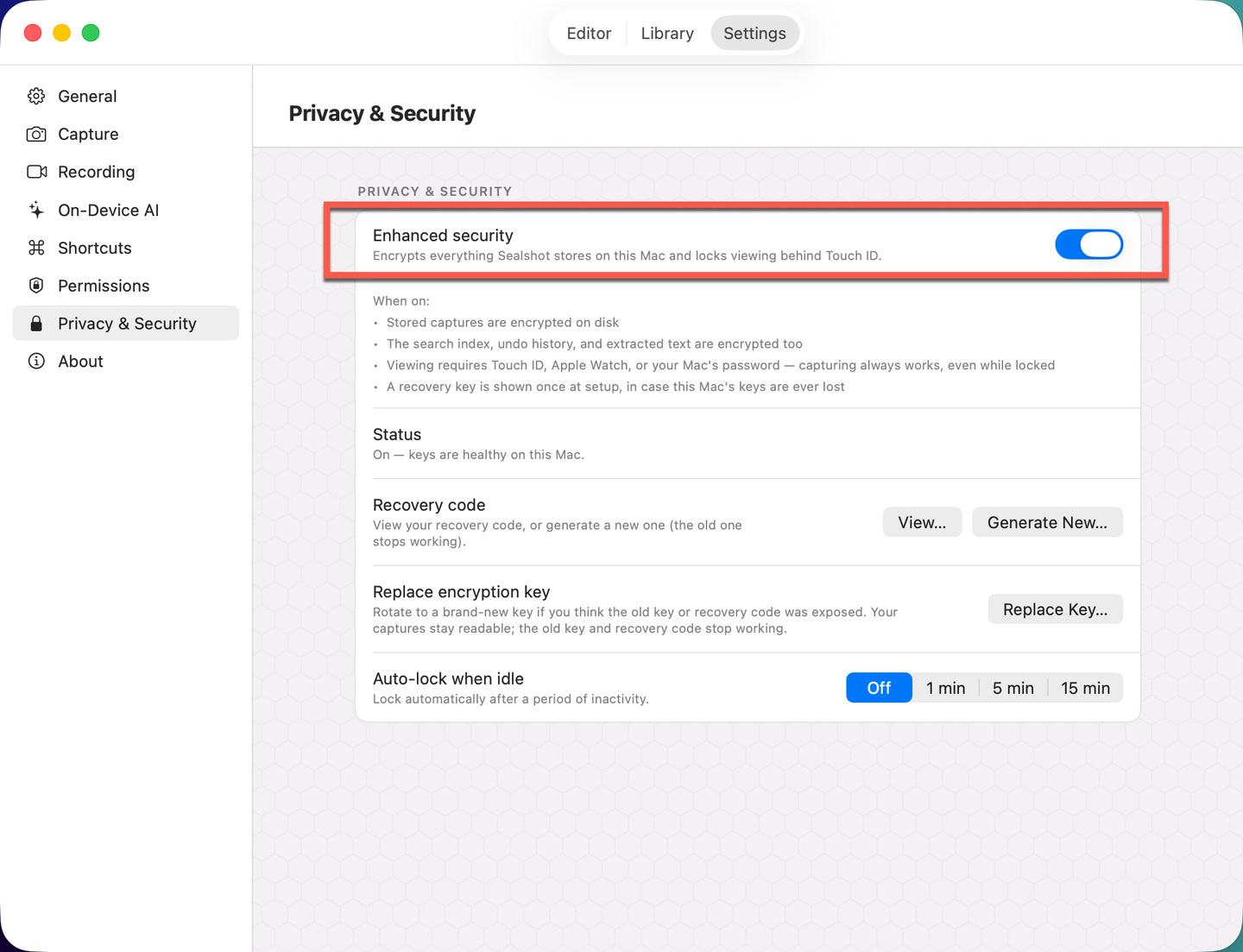 Enable Enhanced security in Settings → Privacy & Security.
Save your recovery code
Section titled “Save your recovery code”During setup Sealshot shows a recovery code. Store it somewhere safe (a password manager is ideal). If your Mac’s keychain is ever lost, this code is the only way back into your encrypted library.
If you lose it (but can still unlock), open Settings → Privacy & Security and use Recovery code → View… or Generate New… — a new code replaces the old one. Replace encryption key rotates the underlying encryption key itself.
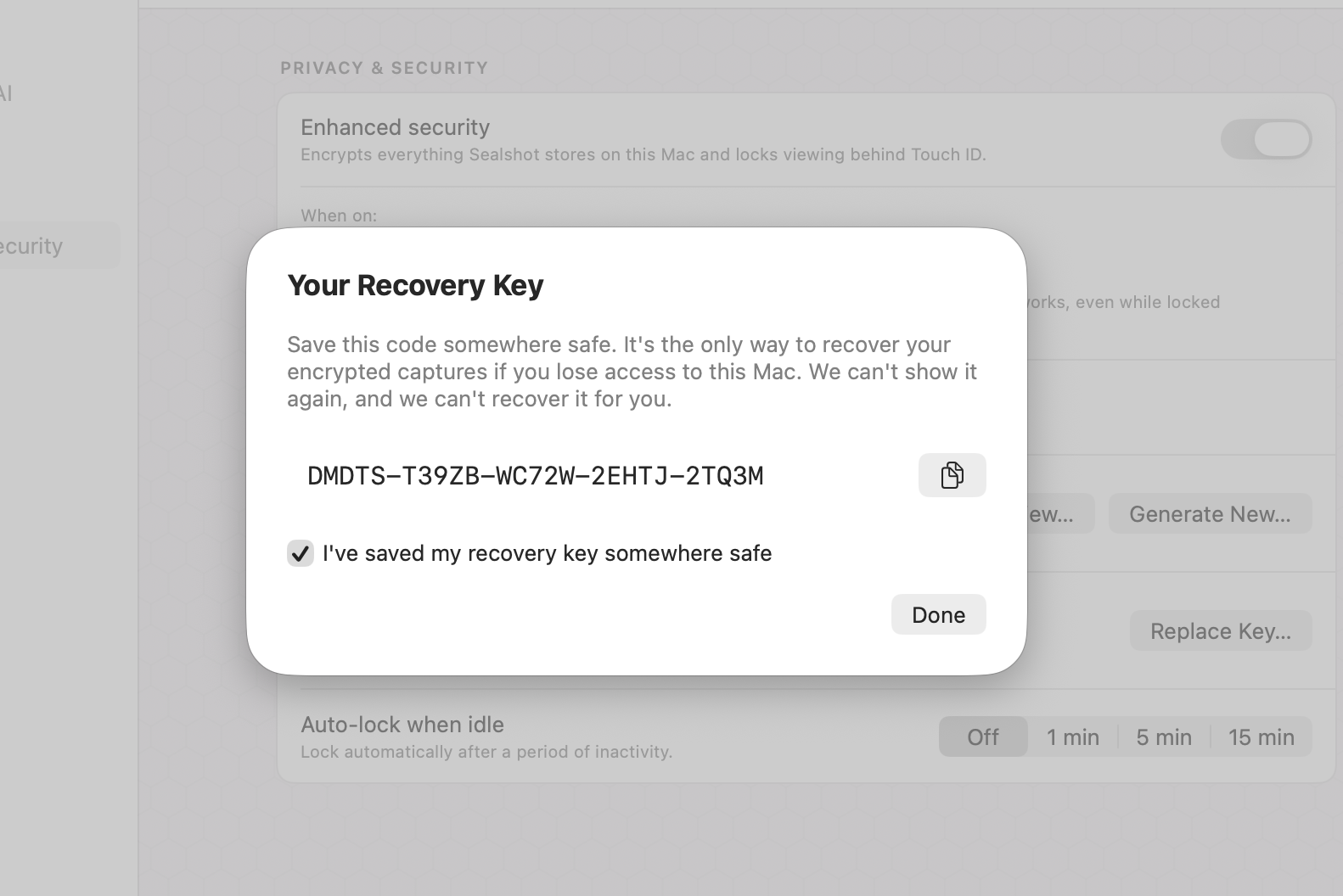 Save the recovery code somewhere safe.
The monthly check
Section titled “The monthly check”Every 30 days, after you unlock, Sealshot asks you to type your recovery code once. It is a memory check, not a sign that anything is wrong: a code transcribed with a typo, or saved somewhere you can no longer find, is already useless the day you write it down — and without a check you would discover that on the one day it matters. The prompt says when the next check falls.
Type it correctly and the 30 days restart. Get it wrong and Sealshot offers Generate New Code…, which takes you to Settings → Privacy & Security to make a fresh one. Remind Me Later defers the check by a week — deliberately much less than a month, because putting it off is itself a sign the code may not be to hand.
Anything that proves you still have a working code counts, so the prompt does not ask twice: acknowledging a newly generated code, unlocking with the code on the lock screen, and restoring a locked archive with it all restart the clock. The prompt only appears while Enhanced Security is on and a recovery keystore exists, never while the library is locked, and at most once per launch.
Unlocking
Section titled “Unlocking”When the library is locked, Sealshot shows a lock screen. Authenticate with Touch ID, Apple Watch, or your password to view your captures.
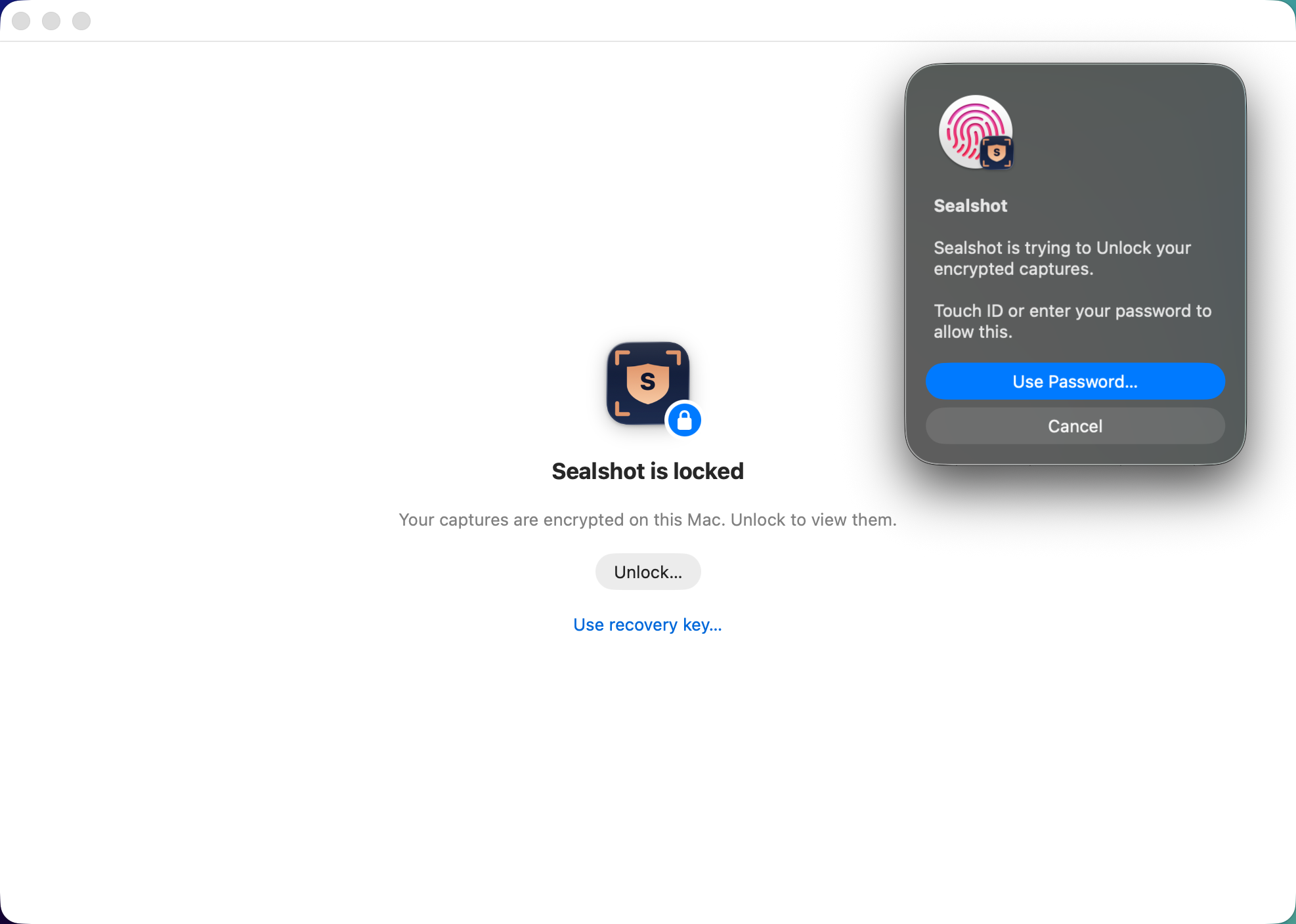 Unlock with Touch ID, Apple Watch, or your Mac password.
Locked means locked: while the lock screen is up, nothing else opens over it — not Settings, not the floating capture window. Pressing a capture shortcut while locked brings up the lock screen with an explanation that new captures are paused until you unlock — the one case where capture waits, and it has nothing to do with licensing.
Locking
Section titled “Locking”Set Sealshot to re-lock automatically after a period of inactivity — Off (default), 1, 5, or 15 minutes — in Settings → Privacy & Security → Auto-lock when idle. Idle means you’ve stepped away from the Mac (no keyboard or mouse activity anywhere, the same signal the screensaver uses) — working in another app doesn’t count as idle, and an in-progress capture or recording is never interrupted. Sealshot also locks when the Mac sleeps, the screen sleeps, or you switch users, and you can lock on demand from anywhere with ⌘⇧L (Lock now).
Sealshot also locks every time it starts, so opening the app asks for Touch ID. Turn that off with Lock when Sealshot starts in Settings → Privacy & Security and Sealshot opens ready to use instead. Your captures stay encrypted on disk either way — but with it off, anyone who can use this Mac can open Sealshot and read them, so you’re asked to confirm the change. Everything else above still applies: Sealshot re-locks on sleep, screen lock, user switch, the idle timeout, and ⌘⇧L.
While locked, everything that could reveal your library goes quiet: the editor, Library, import/export menus, and the open-editor / open-library / clipboard shortcuts are all disabled. Capture and recording shortcuts keep working — new captures are written encrypted, sight unseen, and wait for you to unlock.
Turning it off
Section titled “Turning it off”Toggle Enhanced security off to decrypt your library again. You’ll be asked to authenticate, and Sealshot removes encryption from all captures on your Mac.